Creative · Advanced
Program complex grandMA3 shows with confidence and speed
A recorded advanced programme for experienced operators who want to go beyond the basics and build faster, cleaner show files.
- 24 recorded lessons
- 6 practical modules
- Advanced show-file techniques
- Self-paced access
- 14-day money-back guarantee
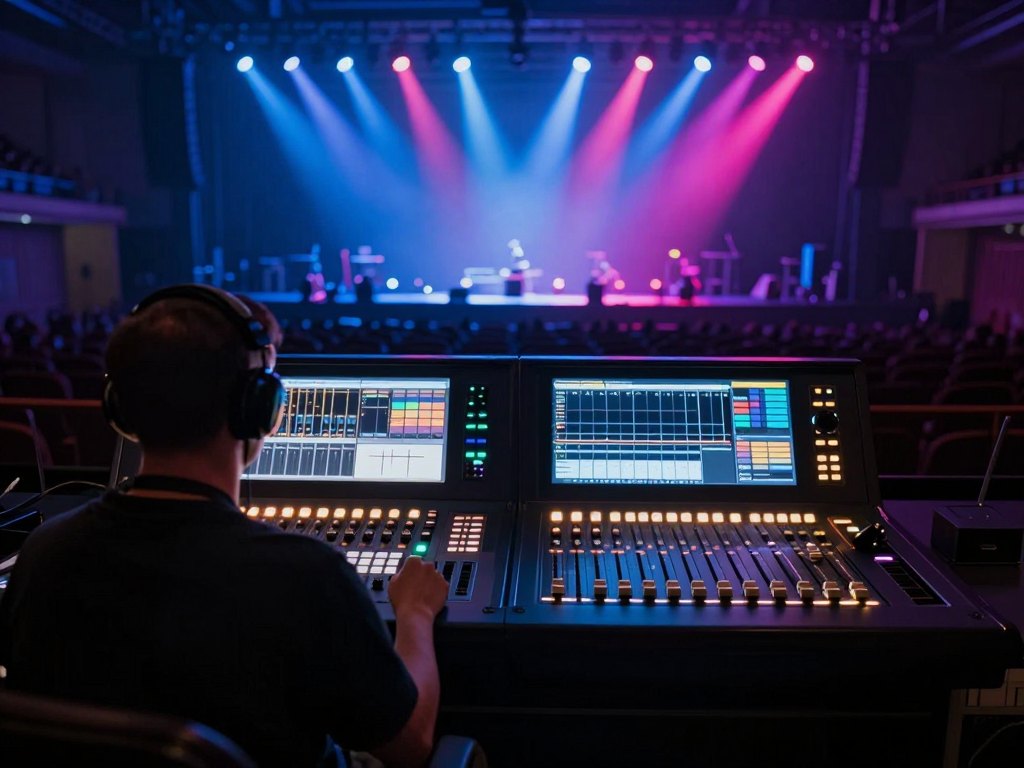
Why experienced operators hit a ceiling
You already know how to patch, select and store a look. The problem is not basic operation. It is the moment a show grows: more fixtures, more cues, more people asking for changes. The console still works, but your show file becomes slow to navigate and hard to hand over. That is the ceiling this programme addresses.
Many experienced operators come from grandMA2 or another console and can make grandMA3 do the obvious things. Advanced work is different. Selection grids, MAtricks, recipes, cloning and timecode all reward a deeper understanding of how the system organises data. Without that model, you repeat manual work and fix the same problems under pressure.
This self-paced programme is built for operators who do not need basic functions explained. It focuses on the advanced topics that change how you structure a show: importing MVR, patching in Split mode, building groups with Grid, shaping complex phasers, storing recipes in cues, cloning without breaking your programming and recording to timecode.
The lessons are recorded, so you can pause, open your own show file and repeat an exercise until the workflow is yours. You work at your own pace, on your own rig or onPC setup, and return to the material whenever a real production raises a new question. There are no scheduled sessions, no travel and no fixed timetable.
What you will be able to do
Each ability is practised on a realistic show-file scenario, not just demonstrated on screen.
- Build a repeatable advanced workspace with the View Bar
Arrange windows, views and tools so the same layout works across shows.
- Import MVR files and patch complex rigs in Split mode
Keep fixture data, layers and groups under control during a rebuild.
- Select and distribute values across large rigs in 3D
Use spatial selection to reach the fixtures you mean, not the ones next to them.
- Create Grid groups and Selection Grid layouts that scale
Build selection structures that still make sense when the rig changes.
- Use MAtricks to generate repeatable selection patterns
Create odd, even and interleaved selections without rebuilding them by hand.
- Shape complex phasers and store editable recipes in cues
Change the shape of a look without reprogramming the whole sequence.
- Clone fixtures while preserving your programming
Move a show from one rig to another without losing the work behind it.
- Record and correct timecode-driven sequences
Prepare, record and inspect a timecode pass with a clear checking routine.
- 6
- modules
- 24
- recorded lessons
- 6
- practice assignments
- 14 days
- money-back guarantee
The method: build, test, repeat
Advanced console work is not a list of shortcuts. It is a way of building a show file so that changes are cheap. Each module follows the same rhythm: a recorded lesson explains the concept, a short demonstration shows it on a realistic show file, and a practice assignment asks you to reproduce the workflow on your own rig or onPC session.
The assignments are deliberately small. You might rebuild a patch after an MVR import, create a Grid group that selects every second fixture, or store a recipe that lets you change a phaser without reprogramming the cue. The point is to make the technique repeatable, not to copy a finished show.
Because the programme is recorded, you can stop before an assignment, open the console and work through it at your own speed. The lessons stay in your account, so you can return to a module when a production demands it. That is how advanced material sticks: you use it, break it and use it again.
The programme
Six modules move from workspace and patching into selection, phasers, cloning and timecode.
1Module 1 — Workspace, show files and patching at speedSet up a repeatable advanced workspace and rebuild a patch without losing control.4 lessons
- Building a repeatable advanced workspace with the View Bar
- Importing MVR files and checking the patch
- Patching in Split mode without losing track of layers
- Grouping fixtures in the patch for faster selection
2Module 2 — Selection, grids and spatial programmingUse 3D selection, Grid groups, Selection Grid and MAtricks on large rigs.4 lessons
- Selecting fixtures in the 3D viewer with precision
- Distributing values across a selection
- Creating groups with Grid and Selection Grid
- Using MAtricks for repeatable selection patterns
3Module 3 — Presets, executors and playback architectureOrganise presets and executor functions so looks survive edits and cloning.4 lessons
- Rethinking controls and executor layout for advanced shows
- Playback and preset settings that keep looks consistent
- Assigning executor functions for cue playback and busking
- Organising presets so they survive edits and cloning
4Module 4 — Phasers and recipes in depthBuild complex phasers and store editable recipes inside cues.4 lessons
- Building complex phasers from scratch
- Shaping phaser curves and step behaviour
- Using Phaser and Recipes together
- Storing recipes inside cues for editable looks
5Module 5 — Sequences, cloning and show scalingControl sequence settings, clone fixtures and scale a show file to a new rig.4 lessons
- Every sequence setting that matters in a large show
- Cloning fixtures while preserving your programming
- Scaling a show file from a small rig to a festival rig
- Managing cue timing and executor priorities
6Module 6 — Timecode and final show recordingPrepare, record, check and hand over a timecode-driven show file.4 lessons
- Preparing a show for timecode control
- Recording cues and sequences to timecode
- Checking and correcting timecode passes
- Exporting, backing up and handing over a show file
What you get
- 24 recorded lessons across six advanced modules
Step-by-step demonstrations with the relevant console windows visible.
- Six practice assignments with briefs and checkpoints
Each assignment gives you a task, a suggested workflow and a way to check the result.
- Advanced show-file checklist
A written reference for workspace setup, patching, grouping and backup routines.
- MVR import and Split-mode patching guide
A practical reference for rebuilding a patch when the rig changes.
- Phaser and recipe troubleshooting sheet
Common causes of drifting, resetting or uneditable phasers and how to inspect them.
- Cloning and show-scaling checklist
A sequence of checks before and after cloning fixtures into a new rig.
- Timecode recording routine
A repeatable pass for preparing, recording and correcting timecode cues.
- Self-paced access with no deadline
Return to any lesson when a production raises a question.
A recorded programme built around real show-file situations
The material is organised around the situations that make advanced operators look for help: a patch that has to be rebuilt after an MVR import, a rig that grows by several dozen fixtures the week before the show, a phaser that needs to change shape without losing the cue, a timecode pass that drifts by a few frames.
Each demonstration is shown step by step on screen, with the relevant windows, selection tools and settings visible. You see the decision, not just the result. When a setting has a side effect, the lesson shows it and explains how to check for it.
You do not need a full rig to follow along. A grandMA3 onPC setup with a compatible wing, or a console in a rehearsal room, is enough for most exercises. Where an exercise needs a larger rig, the lesson explains how to simulate the selection and values so you can still practise the logic.
Is this course for you?
This course is for you if…
- You already operate a lighting console and understand DMX, Art-Net or sACN.
- You have completed a basic grandMA3 course or work regularly on grandMA2.
- You want to structure advanced show files, not learn what a preset is.
- You have access to a grandMA3 console, wing or onPC setup for practice.
- You work in theatre, concerts, events, studios or touring productions.
Probably not a fit if…
- You are new to lighting consoles and have never patched a rig.
- You want a course about lighting design or creating beautiful scenes.
- You are looking for a basic grandMA3 introduction.
- You cannot practise on a console, wing or onPC setup between lessons.
- You want a theoretical overview without hands-on practice.
After the course
You open a show file and know where everything lives. The patch is grouped, the windows are arranged for the way you work, and the selection tools are set up before the first cue is stored. Rebuilding a rig feels like a process rather than an emergency.
When the rig changes, you clone fixtures and check the result without rebuilding the show from scratch. When a phaser needs a new shape, you edit the recipe instead of starting again. When timecode is part of the production, you record a pass, inspect it and correct it with a clear method.
The result is not a title or a badge. It is a show file you can hand over, explain and adjust in front of a client or a touring crew, and a set of workflows you can apply to the next production without relearning them from scratch.
Questions before you buy
How much time do I need each week?
Most learners work through one module a week, which means roughly two to three hours of video plus an hour or two of practice on their own setup. The programme is self-paced, so you can move faster through topics you already know and spend longer on cloning, phasers or timecode.
Do I need to have completed a basic grandMA3 course?
Yes, or you need equivalent experience. The programme starts from the assumption that you can patch, select fixtures, store presets and record a cue. Basic functions are not taught here. If grandMA3 is completely new to you, start with a basic course first, because the system has its own philosophy and the advanced material builds on it.
I work on grandMA2. Can I join directly?
Experienced grandMA2 operators are the second main audience for this programme. The lessons point out where grandMA3 differs from what you already do, so you can map your existing habits onto the new structure. You should still expect to spend time on the interface and on the selection tools before the advanced topics feel natural.
How do I get access after payment?
Access is created automatically once the payment is confirmed. You receive an email with a link to your account, where all six modules and the downloadable checklists are waiting. If the email does not arrive within a few minutes, check your spam folder and then contact support so the access can be restored.
What format are the lessons in?
The lessons are recorded screen demonstrations with spoken explanation, grouped into six modules of four lessons each. Alongside the videos you get written checklists, assignment briefs and troubleshooting sheets. There are no live sessions and no scheduled calls, so nothing depends on being available at a particular hour.
How long does the material stay available?
The lessons and materials stay in your account after purchase, with no expiry date. You can return to a module months later when a production raises a question, and you keep access to any updates made to the programme.
What equipment do I need to practise?
A grandMA3 console, a wing with onPC, or an onPC setup is enough for most exercises. You also need a computer that runs the software comfortably and a way to play back timecode if you want to complete the final module fully. A USB drive formatted for the console is useful for backing up show files between exercises.
What is the refund policy?
You have 14 days from the purchase date to request a refund. If the programme is not what you expected, write to support within that period and the payment is returned according to the store's refund terms. There is no need to justify the decision.
Is this a live training?
No. This is a recorded self-study programme built from the advanced curriculum, so you watch the lessons when it suits you and practise on your own rig. Nothing in the programme requires travel, attendance at a venue or presence at a fixed time.
Start with the module you need most
Get instant access to all six modules, the practice assignments and the checklists, and work through them at your own pace.